
Real4KUpscaling
No Wax Effect.
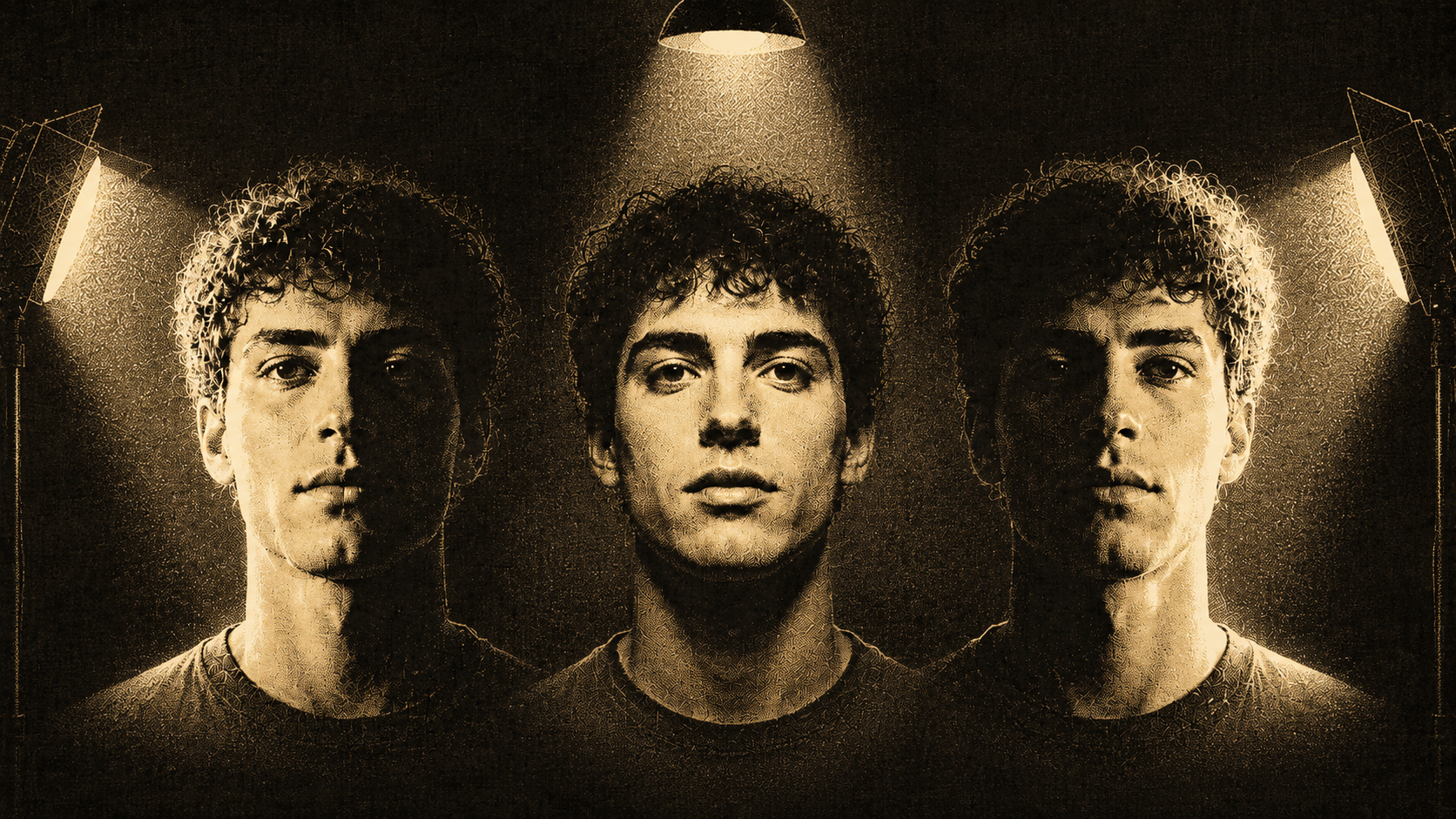
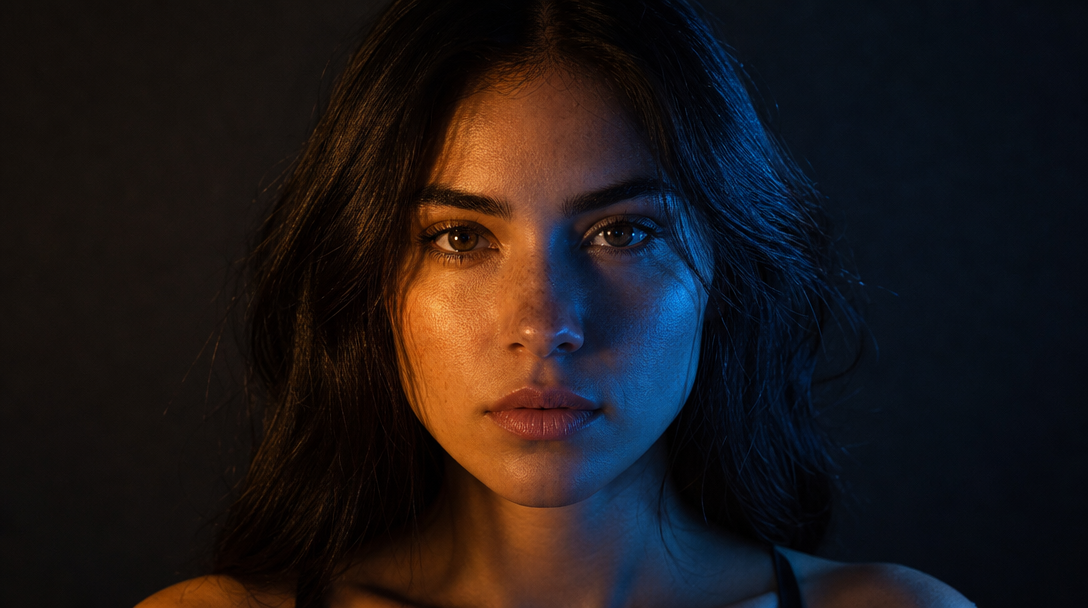
Bring photos and video clips up to 4K with AI. Recover detail, sharpness, and clarity that's actually in the file — built into the ReelUp creator studio.
How to upscale a photo or video in three steps
Three steps from low-res input to download-ready 4K — same workflow whether it's a still or a clip.
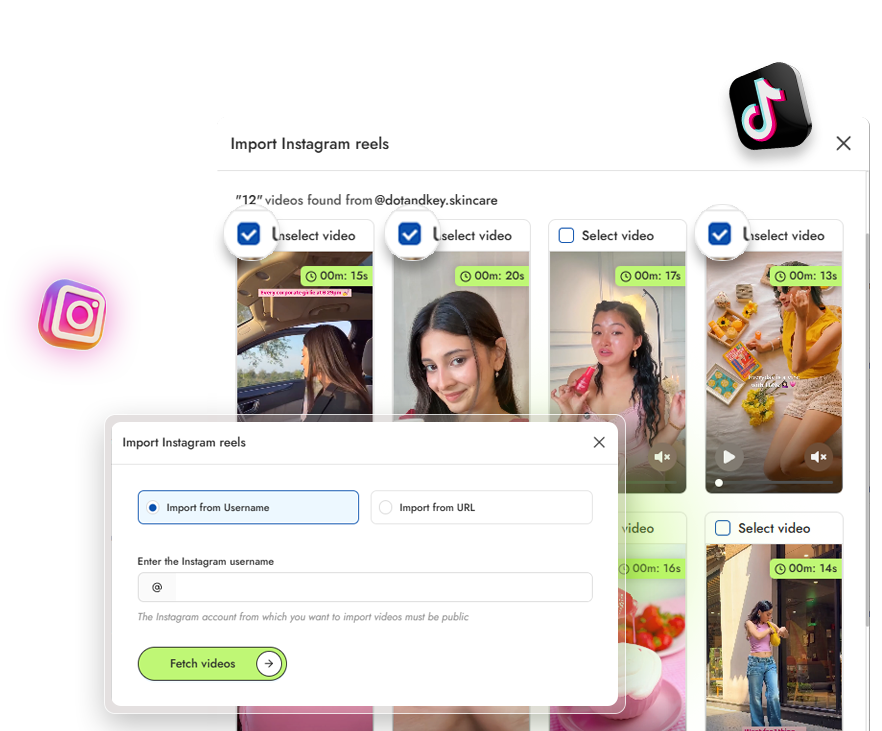
Upload your photo or video
Drop in any image or video clip up to 1080p. JPG, PNG, WebP, MP4, or MOV. Lower-resolution inputs are fine — that's the point.
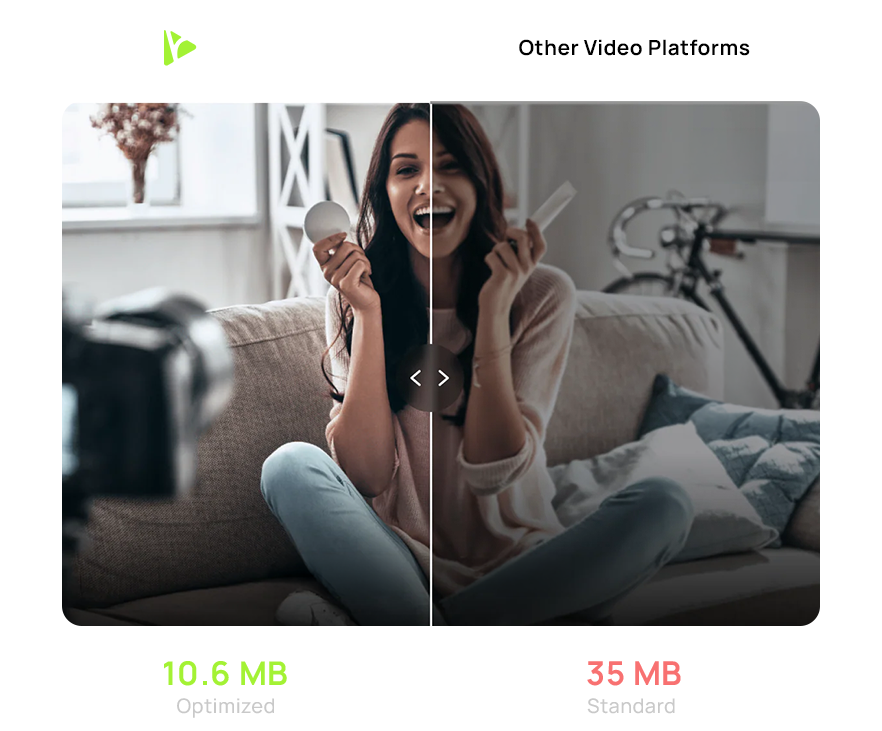
Choose your output resolution
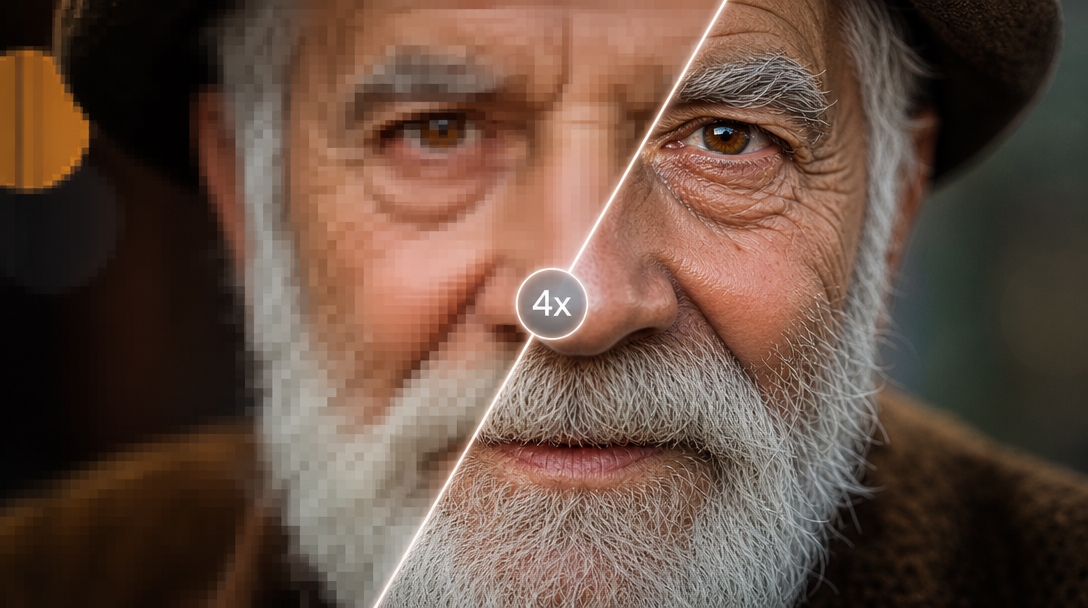
Pick 2× for HD or 4× for 4K. For videos, the same scaling applies — a 540p clip becomes 1080p, a 1080p clip becomes 4K.
Generate and download
Hit upscale. Photos process in about 5 seconds, videos in around 45 seconds per 10 seconds of footage. Download the result at the resolution you picked.
What people use AI upscale for
From print-ready product shots to 4K social cuts — upscaling fits wherever an image or video needs to be bigger, sharper, or both.

Restoring old photos
Bring family photos, scans, and pre-smartphone digital pictures back to something worth printing or sharing.

AI image upscaling for ads
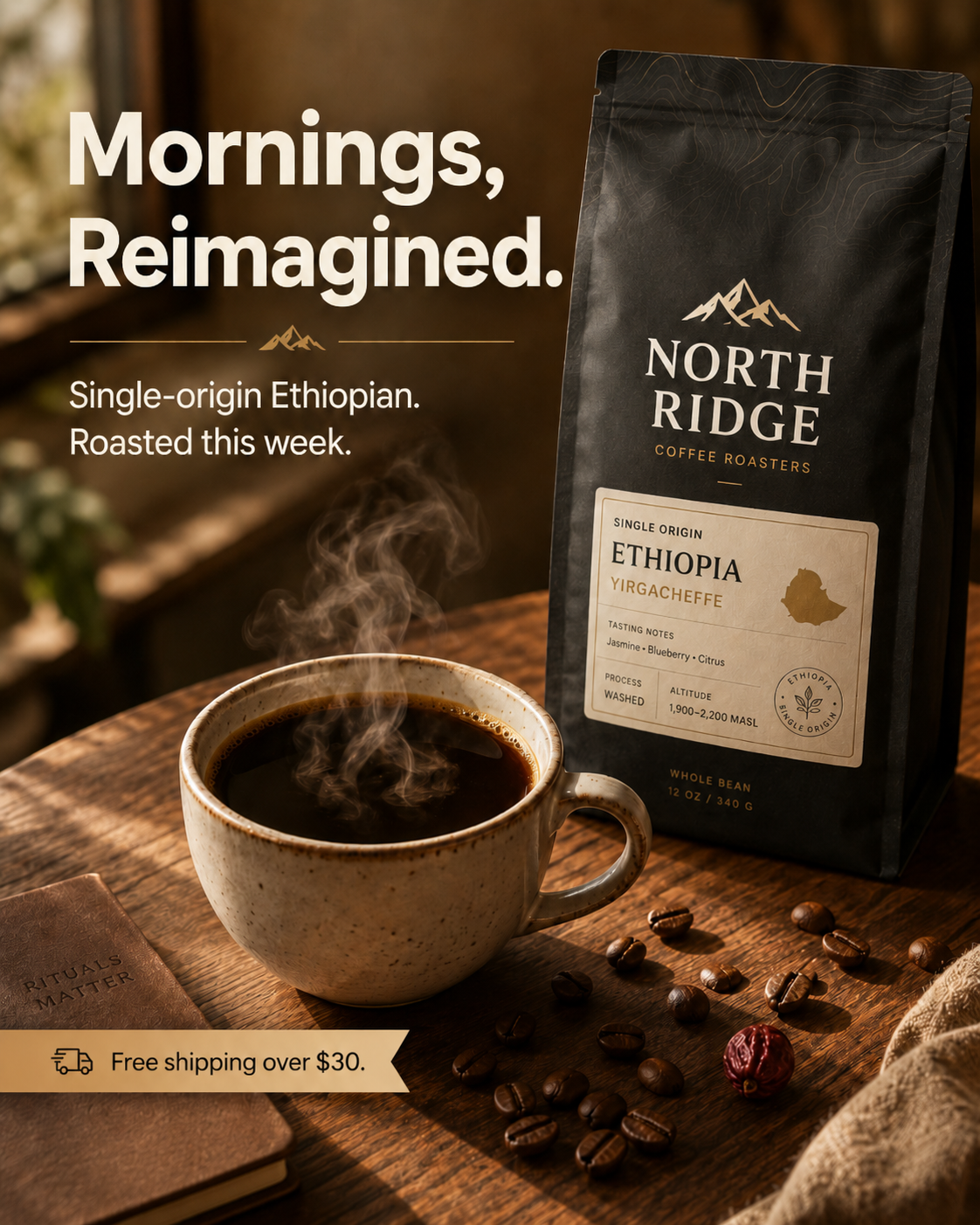
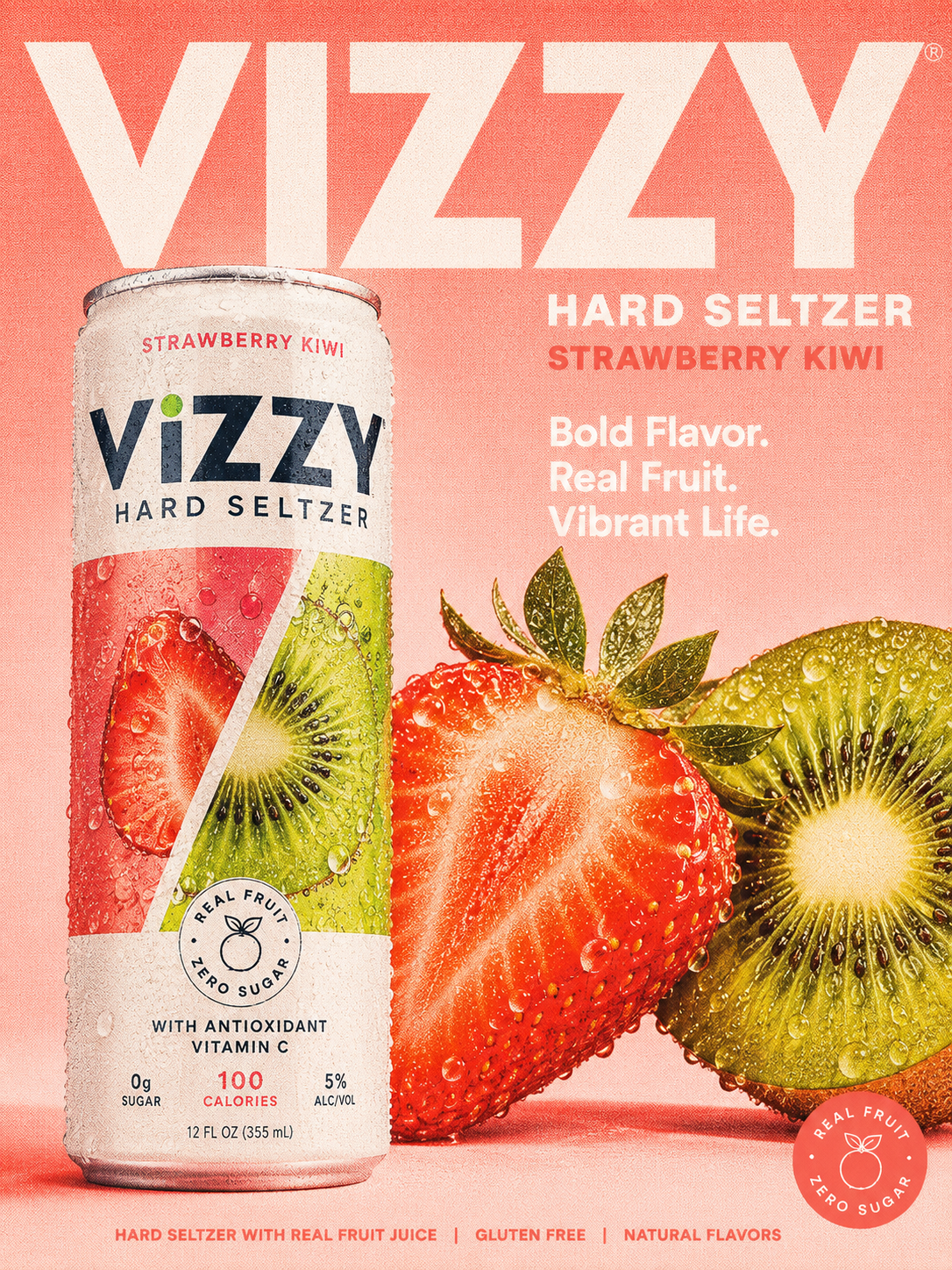
Take 1024px outputs from Midjourney, Flux, or Nano Banana up to 4K without losing the detail that made the image work in the first place.
Catalog and product photography
Upscale phone-shot product photos to print resolution so your catalog doesn't fall apart at large sizes.
4K from social clips
Take a 720p clip downloaded from TikTok or a Reels export up to 4K for use on bigger screens or higher-spec placements.
Sharper screen recordings
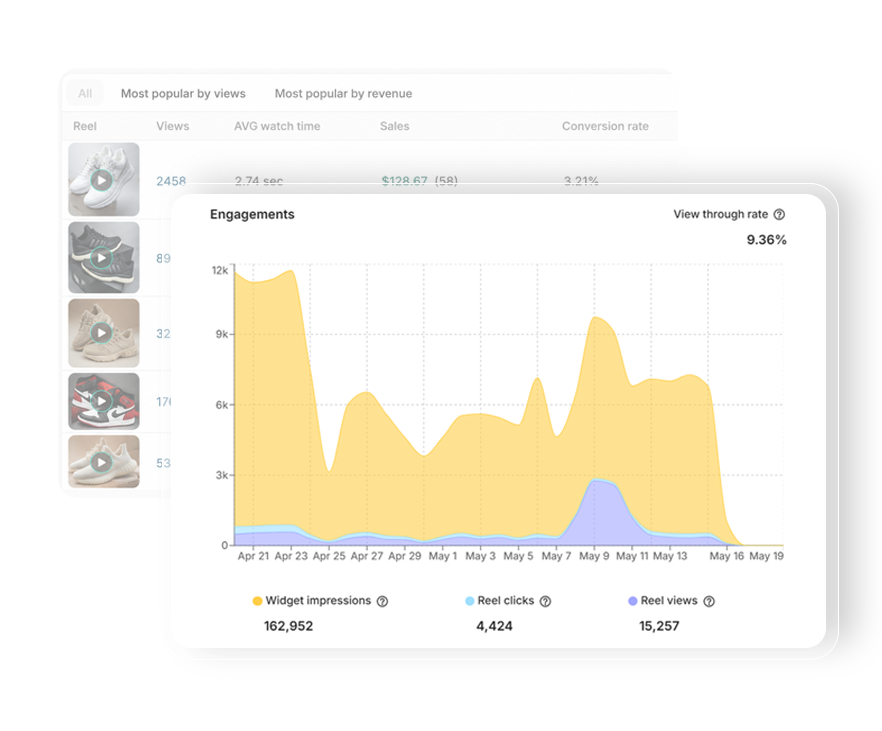
Upscale screen captures, demo videos, and slide recordings so text and UI elements stay crisp on large displays.
Old footage restoration
Bring DV-tape transfers, old phone video, or low-bitrate archives up to a resolution that fits modern feeds.

Print and large-format
Get phone or stock images up to a resolution that survives at poster, banner, or billboard scale.

Cleaning up compressed exports
Recover detail lost to aggressive compression when files have passed through multiple platforms, re-uploads, or messaging apps.
Why creators choose ReelUp
for upscaling
Detail that's actually in the file
Most upscalers smooth away real detail. Faces turn waxy, hair loses structure, and textures flatten. ReelUp is tuned to preserve natural detail — keeping skin, hair, and fabrics sharp and believable, even when zoomed in.
- Skin texture preserved
- Hair structure intact
- Fabric weave readable
- Holds up zoomed in
Photo and video, same workspace
Photo upscalers and video upscalers are usually treated like different products entirely. ReelUp unifies both into a single tool with one interface, one subscription, and consistent quality.
- One simple interface
- Photo & video unified
- Same quality bar
- One subscription
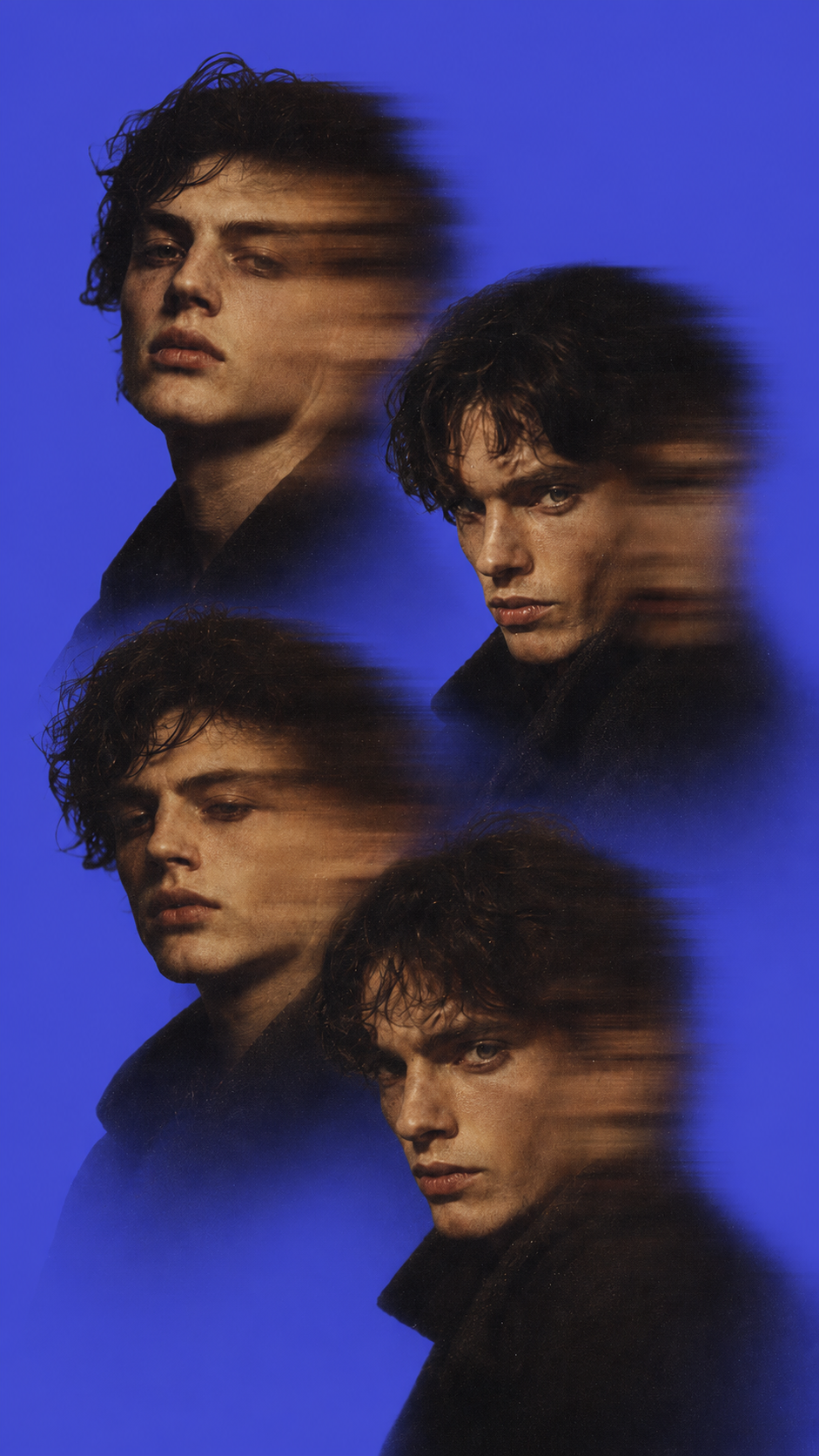
Part of the rest of the studio
After upscaling, the real work usually starts. ReelUp lets you edit, caption, swap faces, clone voices, and polish videos without leaving the platform.
- Face swap built-in
- Voice cloning + lipsync
- Captions and editing
- No tool-switching
Frequently asked questions
Everything you need to know about upscaling photos and videos with ReelUp.
AI upscaling is a generative AI technique that increases the resolution of a photo or video — typically 2× or 4× — by predicting what detail should be present at the higher resolution. Unlike traditional resizing, which simply stretches existing pixels and produces a blurry result, AI upscaling reconstructs sharper edges, finer texture, and more readable detail based on patterns it has learned from millions of high-resolution images and frames.
Upload a photo or video, choose the target resolution, hit upscale. The model analyses the file, identifies which details can be sharpened and which need to be reconstructed, and generates the higher-resolution output frame by frame. The whole process takes seconds for photos and under two minutes for most clips — no manual sharpening, masking, or post-processing required.
ReelUp offers free upscales on the entry plan, with paid plans unlocking 4K output, longer videos, batch processing, and faster queue priority. Free upscales include a small ReelUp watermark; paid plans export clean. There's no separate fee for image versus video — both are included in the same plan.
A little, by design — that's what makes it different from traditional resizing. The model fills in detail that's consistent with what's already in the image, but it doesn't invent identifiable features that weren't there. On a clear, well-lit input, the added detail is indistinguishable from a higher-resolution capture. On extremely low or noisy inputs, the model errs on the side of restraint rather than hallucinating faces, text, or objects.
Both. ReelUp handles photo and video upscale in the same workspace. Photos process in about 5 seconds; videos take roughly 45 seconds per 10 seconds of footage. Video upscaling runs frame-by-frame with temporal consistency, so the result doesn't flicker or shimmer between frames the way naive per-frame upscaling does.
Standard scaling options are 2× and 4×. A 1080p input becomes 4K at 4× scaling. A 540p input becomes 1080p at 2× or borderline 4K at 4×. Beyond 4× the model starts inventing detail rather than reconstructing it, so the ceiling is set there on purpose. If you need to go bigger, upscale once at 4×, review the result, and only upscale again if the first pass is genuinely sharp.
The honest answer is that the top tier of AI upscalers — including ReelUp — use models with similar quality ceilings, because they're all built on the same family of super-resolution research. The differences are in workflow, pricing, and what the tool does with the output once it's upscaled. ReelUp's edge is the integrated studio: upscale plus face swap, captions, voice cloning, image editing, and video editing in one place.
Images: JPG, PNG, WebP. Videos: MP4, MOV, WebM, up to 1080p input on standard plans. Output: 4K maximum on Pro, 1080p on standard. There's no separate "upload format" and "result format" — the output is returned in the same container as the input, in the highest quality the format allows.
No. Upscaling is purely a resolution operation — it doesn't alter colors, contrast, saturation, or stylistic choices. If you want to adjust those after upscaling, the ReelUp image editor handles that in the same workspace.
Photos process in about 5 seconds. Videos take roughly 45 seconds per 10 seconds of footage, so a typical 30-second clip processes in around 2 minutes. Processing speed scales with plan — Pro users get priority queue access and the highest-tier model.
Yes on paid plans, including for marketing creative, advertising, client work, e-commerce catalogs, print materials, and any other commercial purpose. You retain rights to your outputs. Free-plan upscales are for personal and creative use only.
Yes — old photos and low-resolution inputs are where AI upscaling makes the biggest visible difference. Family photos scanned at low DPI, images from early digital cameras, and pre-smartphone phone photos all upscale well. The cleaner the input (less noise, less compression), the better the result, but the model is built to be forgiving of typical archival inputs.
Uploads are encrypted in transit, processed in isolated workers, and deleted within 24 hours. We never train models on your uploads. Every output carries invisible provenance metadata so you can prove the content came from ReelUp if needed.
Partially. Compression artifacts (the blocky look of heavily-shared JPEGs and low-bitrate video) are something the model is specifically trained to clean up, and results are usually strong. Motion blur on video and out-of-focus blur on photos are harder — the model can recover some detail, but if the original capture was deeply blurry, upscaling can't reverse it. As a rule: if you can see the detail in the original at any zoom level, upscaling can usually bring it out. If the detail genuinely isn't in the file, no upscaler can invent it faithfully.
Output keeps the aspect ratio of the input, sized up by the scale factor you chose. A 9:16 input stays 9:16. A 4:5 input stays 4:5. If you need to crop or reformat the result, the ReelUp video and image editors handle that without a second upscale pass.
Other tools in the ReelUp studio
Built for creators, designed for speed.
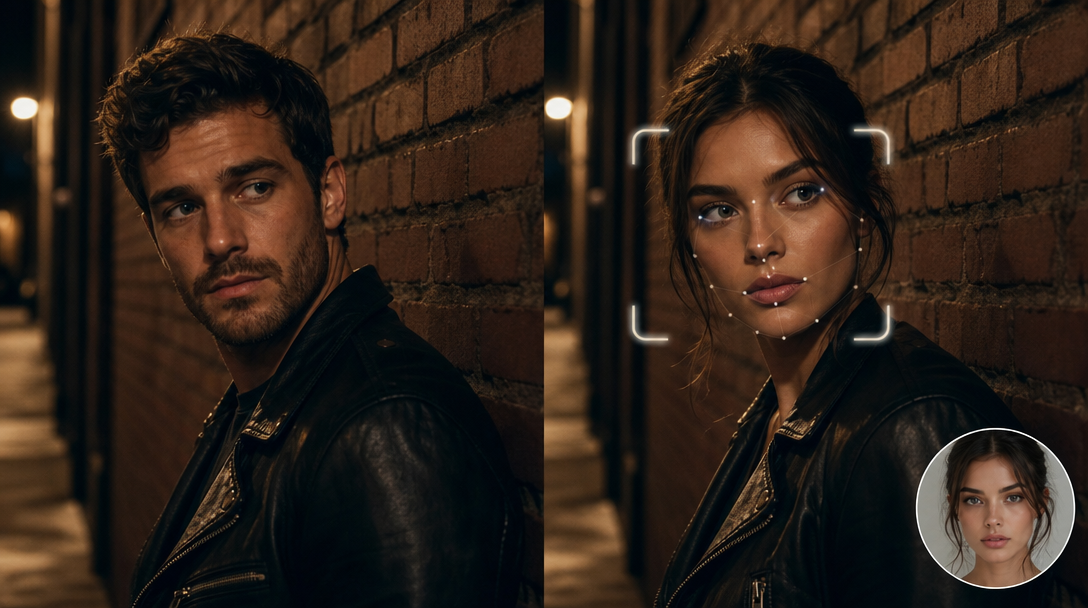
AI Face Swap
Swap faces in any clip
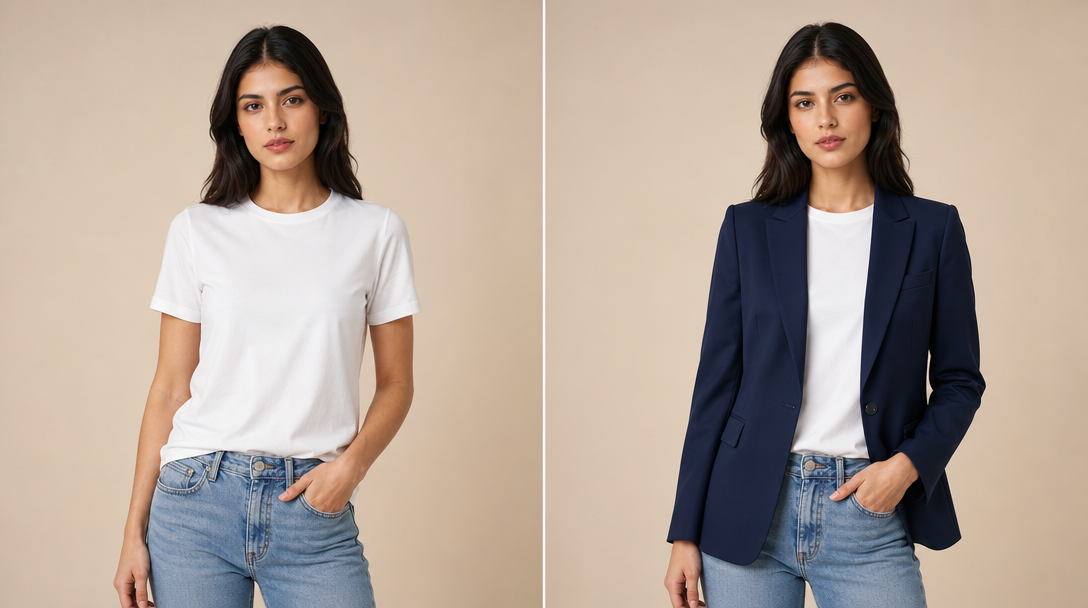
AI Fashion Model
Try clothes on any character
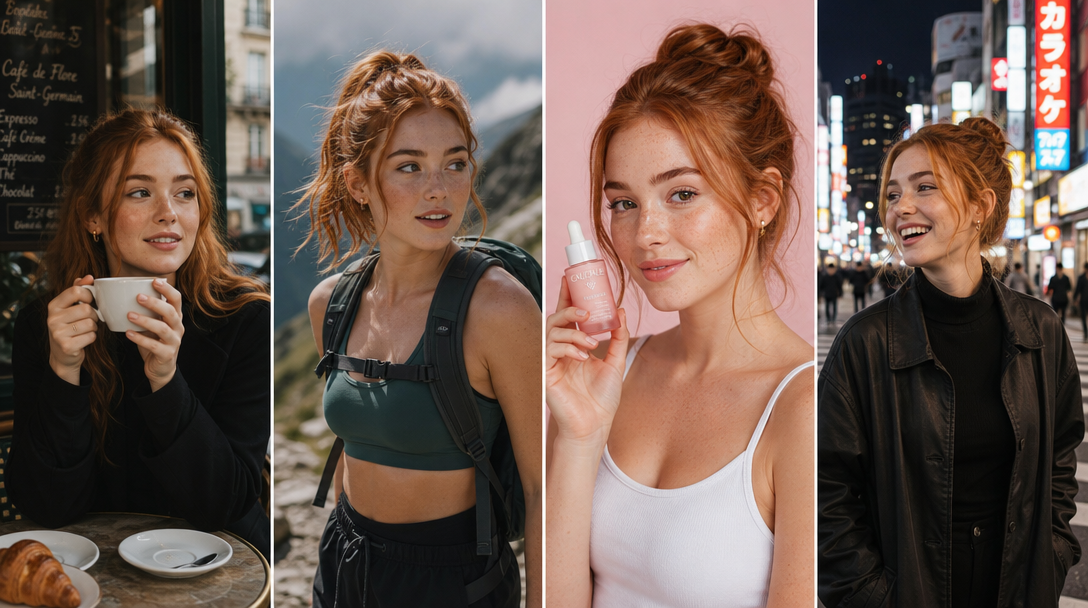
AI Lipsync
Match mouth to any voice

Background Remover
Remove backgrounds instantly
AI Motion Control
Direct character movement
AI Voice Cloning
Clone any voice in seconds
Multi-Angle Shots
Same character, every angle
AI Video Editor
Cut and polish in one canvas
AI Auto Captions
Caption every clip instantly
The upscaler that comes with the rest of the studio.
Face swap, lipsync, voice cloning, captions, image and video editing — all in ReelUp. Upscale once, finish in the same place.